Who this is for
This article is for PortalSIX Users.
What you'll accomplish
By the end of this article, you will:
- Know how to create a new SIX
- Know how to add participants to your new SIX
Key Concepts or Steps
Please note:
Only internal users on a PortalSIX account can create SIXs. If you are logged into the PortalSIX user app on a guest, or external user, account, you will not be able to create new SIXs.
Creating a new SIX
New SIXs can be created from the main PortalSIX user app screen (the "SIX List" screen).
To create a new SIX:
- Click the button to create a new SIX
- Enter a name and, if desired, a description for your new SIX (SIX descriptions are optional). Click Next.
- Select one or more Owners for your new SIX. Click Next.
- A SIX must have at least one Owner, and there is no upper limit to the number of Owners a SIX can have.
- Only internal users on your account can be selected as SIX Owners.
- Your
user account will be selected as an Owner by default. You can deselect
yourself if desired and select different owner, but your SIX must have
at least one Owner selected to continue the creation process.
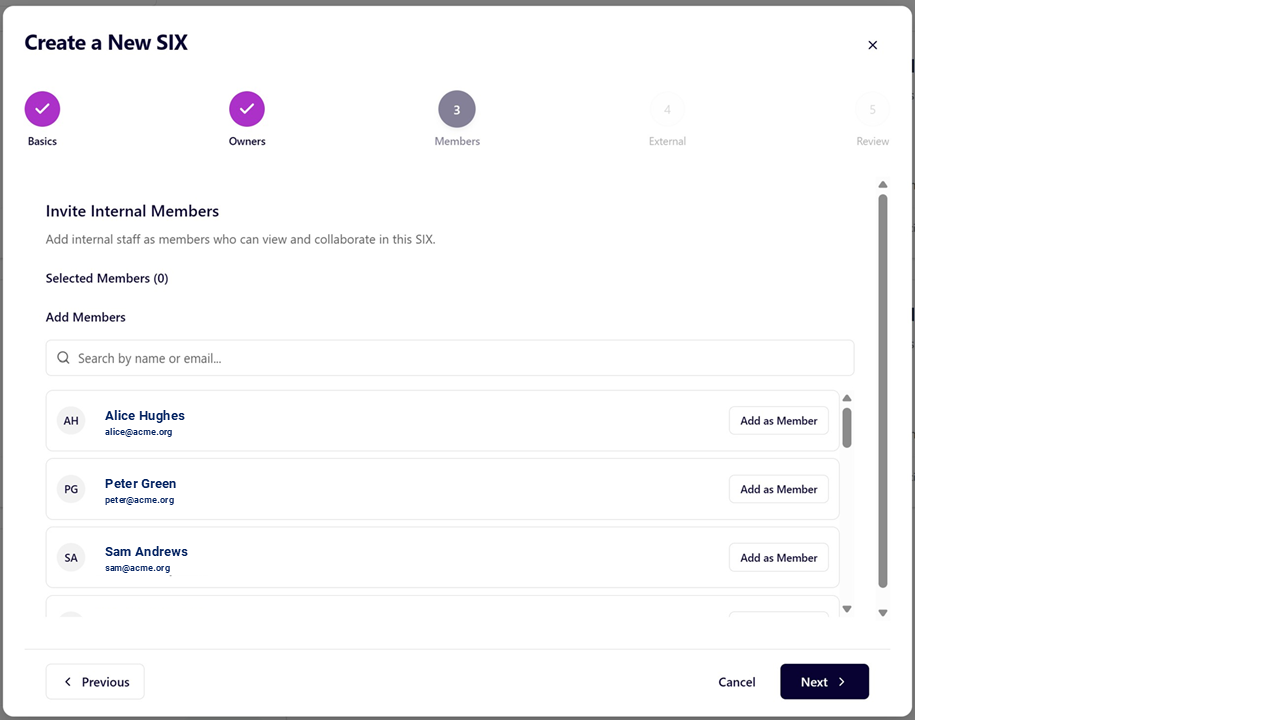
- Select SIX participants from the list of internal users associated with your PortalSIX account.
- Users already selected as Owners
of this SIX will not appear in the list. They are already selected as
participants (based on their Owner role) and do not need to be
re-selected.
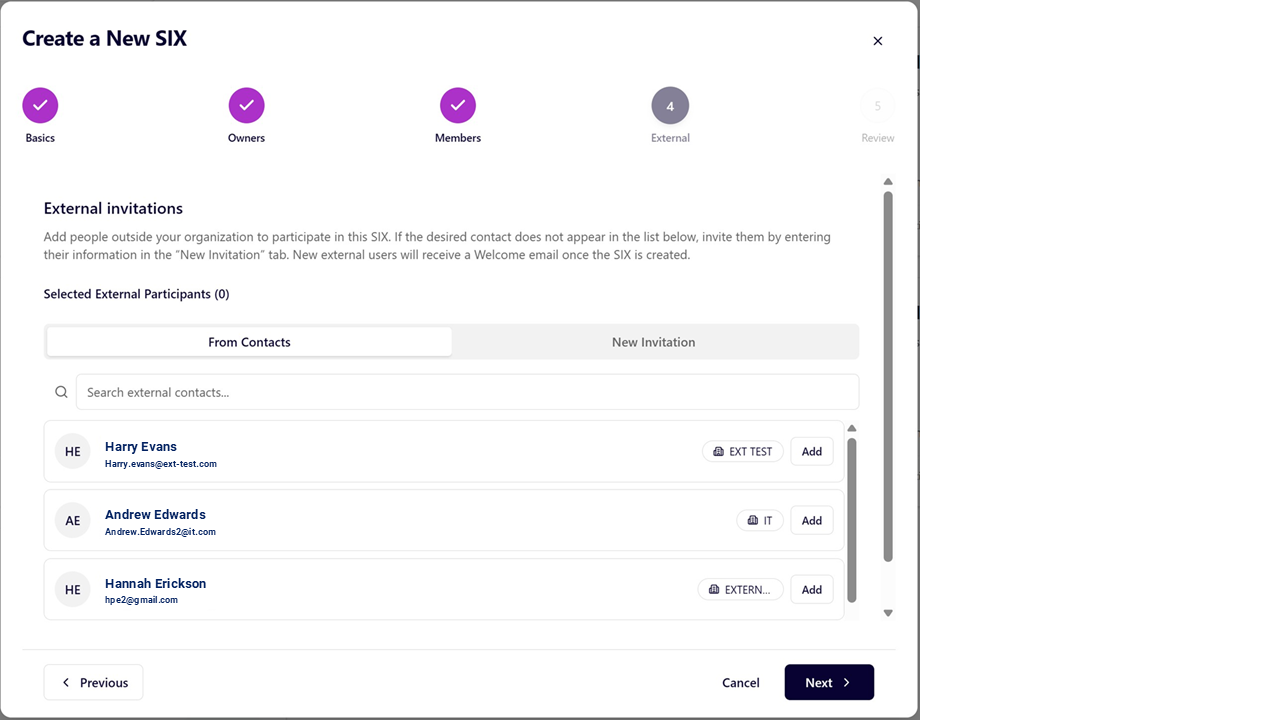
- Select SIX participants from the list of external users (guest users) associated with your PortalSIX account.
- External (Guest) users known to your organization's PortalSIX account will be shown in the list.
- If
you wish to add a new External (Guest) User to your organization's
PortalSIX account and to this new SIX, you can do so by clicking on the
tab labeled "New Invitation"
- If you are inviting / creating a new External (Guest) User:
- Populate
the fields in a blank row on the New Invitation tab with the new
External (Guest) User's information: Name, Email, Phone Number, and
Organization. All fields are required to invite the new user.
- If
the email entered already exists, then the user you are trying to add
already has a user account. You can return to the "From Contacts" tab to
add them to the SIX directly.
- Once
fields are populated for the External (Guest) User(s) you wish to add
to your organization and invite to the SIX, be sure to click Add to SIX.
The added users will appear in a list of Selected External Participants
when you have successfully added them.
- Once
the SIX is created (after the next step), any new External (Guest)
Users created will receive a Welcome Email. Once they complete the new
user registration process, they will be able to see and access this new
SIX (Registering your new PortalSIX user account).
- Click Next.
- Review
and confirm that the SIX name, description, Owner selection(s), and
participant selection(s) look correct. You can use the button labeled
Previous to go back and make any necessary corrections. When the
information is correct, click Create SIX.
- Your
new SIX will appear in the list of SIXs you are authorized to access
(as long as you are a participant in the SIX - if you are not a
participant, you will not see the SIX.)
|
If you need additional help
Please reach out to us at SIX3RO if you need any additional help or information.
During this pilot period, we will make every effort to respond to your emails or phone calls within 24 hours.
You can reach us at
or
+1 (703) 721-8208
Related articles
Related Articles
Accessing a SIX
Who this is for This article is for PortalSIX Users. What you'll accomplish By the end of this article, you will: Know how to access a SIX that you are a participant in Know how to to download files in a SIX Key Concepts or Steps Please note: You ...
Modify SIX participants (Add, Remove, and Change Participant Role)
Who this is for This article is for PortalSIX Users. Only SIX Owners can modify SIX participants. Users that are not owners will not see the button, labeled Manage Access, to modify SIX participants. What you'll accomplish By the end of this article, ...
Registering your new PortalSIX user account
Who this is for This article is for new PortalSIX Users. What you'll accomplish By the end of this article, you will: Know how to register your new PortalSIX user account so that you can login to the PortalSIX user app Key Concepts or Steps Before ...
Create a folder in a SIX
Who this is for This article is for PortalSIX Users. What you'll accomplish By the end of this article, you will: Know how to create a new folder in a SIX. Key Concepts or Steps Please note: You will only be able to create a folder in a SIX that you ...
Add a file to a SIX
Who this is for This article is for PortalSIX Users. What you'll accomplish By the end of this article, you will: Know how to add a file to a SIX. Key Concepts or Steps Please note: You will only be able to add a file to a SIX that you are a ...